From Lesson Plan to Purchase Order: How Teachers Can Use the Share-A-Cart AI Connector
Shared on 4 September 2026, by Ed
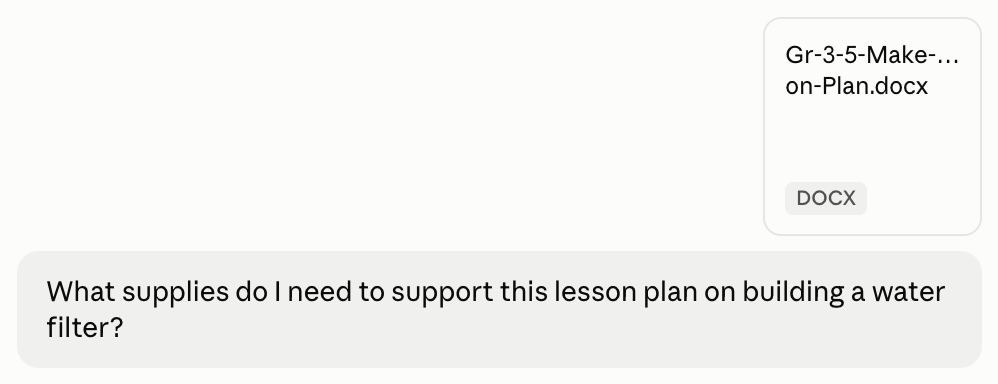
Every teacher knows the drill: you find a great hands-on lesson plan, but then you need to make sure you have everything you need in the classroom to support it. Then, more often than not, that list has to go to someone else entirely — an office manager, a department head, or a purchasing office — who places the actual order, usually through whichever store the school already has an account with.
The Share-A-Cart connector for Claude is built to make that whole process easier. Connect it once, and Claude can go from “here’s my lesson plan” to “here’s a cart, ready to hand off to whoever does your purchasing” — built for the specific store your school already buys from, without you having to search for a single item yourself.
While we used Claude in this blog post, you can also use ChatGPT. Simply install the ChatGPT plugin for Share-A-Cart, available here.
Here’s a real walkthrough of how it works, using an actual lesson a teacher planned recently: a lesson that teaches kids to build a water filter.
Step 1: Upload the lesson plan and ask what you need
The teacher started by uploading the lesson plan PDF and simply asking:
“What supplies do I need to support this lesson plan on building a water filter?”
Claude read through the document — in this case, ‘Water Filtration Design’ for Grades 3-5 — and provided a list of materials, and also added a few helpful notes around how to keep costs low and make the lesson as meaningful as possible:
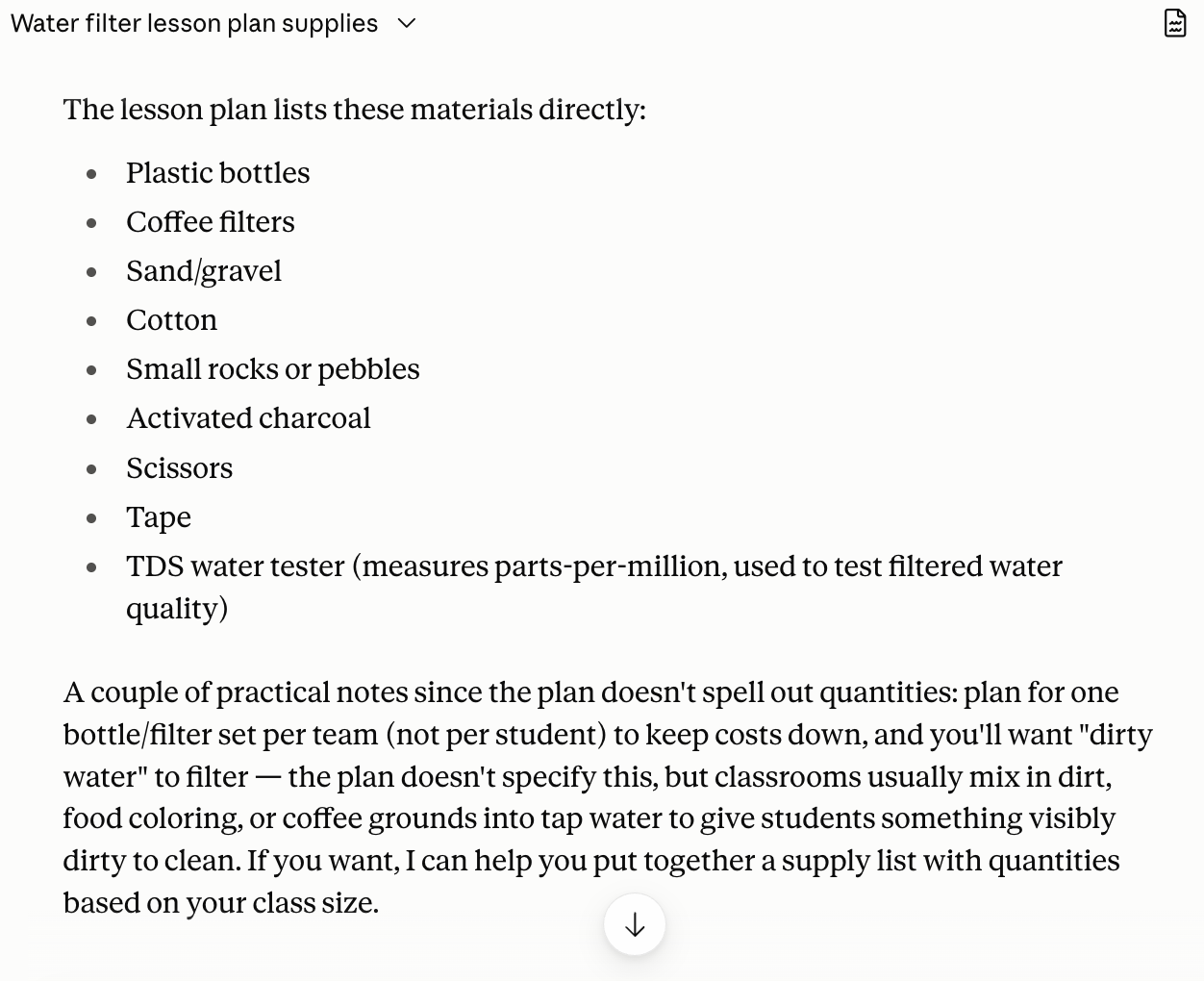
This step alone saves the read-through-and-transcribe work most teachers do by hand with a notepad.
Step 2: Ask for a cart, in the store your school buys from
Next, the teacher asked:
“I already have scissors, sand, tape, and gravel. Can you build me an Amazon cart with the remaining items?”
That’s the detail that matters most for this step: name the store your school actually orders from. Share-A-Cart works across a wide range of retailers, so whether your school buys through Amazon, Walmart, or another supported store, you can just say so and Claude will build the cart there — in whatever format your purchasing office is used to receiving.
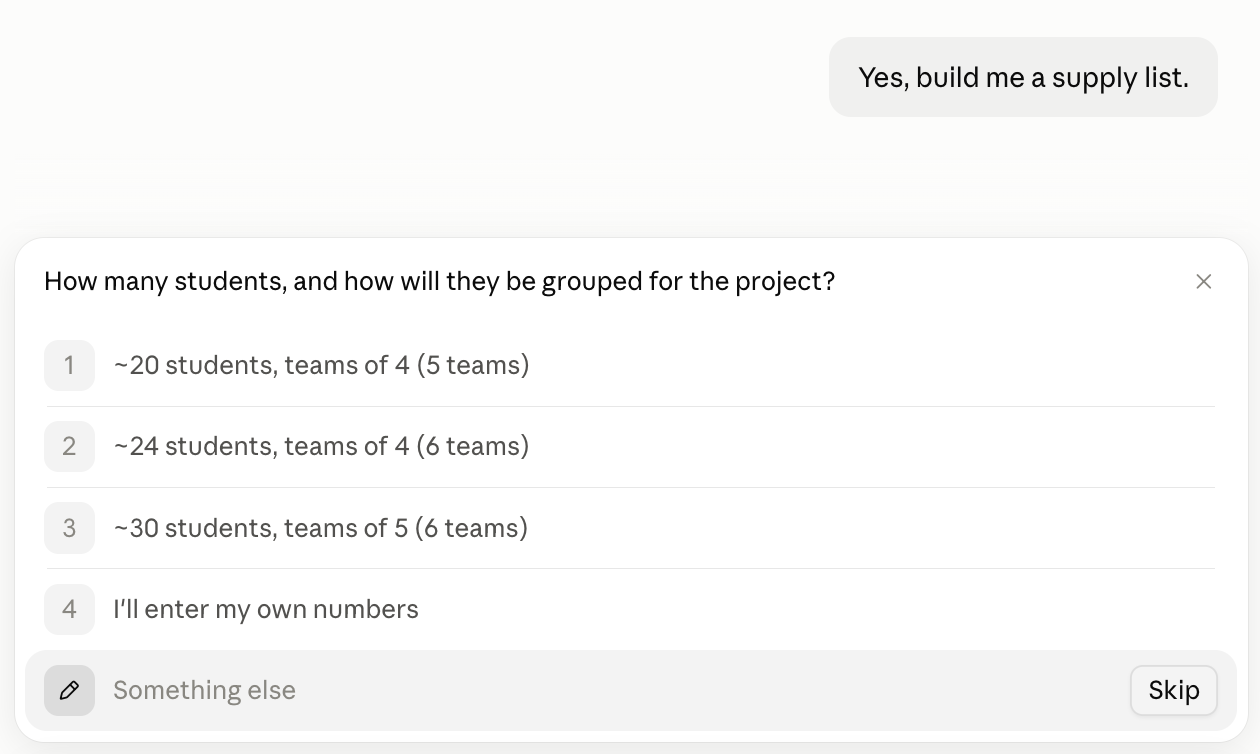
Rather than guessing at quantities, Claude asked one clarifying question — how many lab groups the class would have — since the amount of everything scales directly with group count. That’s the connector working as intended: it doesn’t just start searching blindly, it asks for the one piece of information that changes everything downstream.
Step 3: Claude finds the items and builds the cart
Once the teacher answered (“~20 students”), Claude searched the store for each material on the list and put together a single shareable cart with a title and description.
The result was a single link: a ready-to-view cart with every item, quantity, and price laid out in a table.
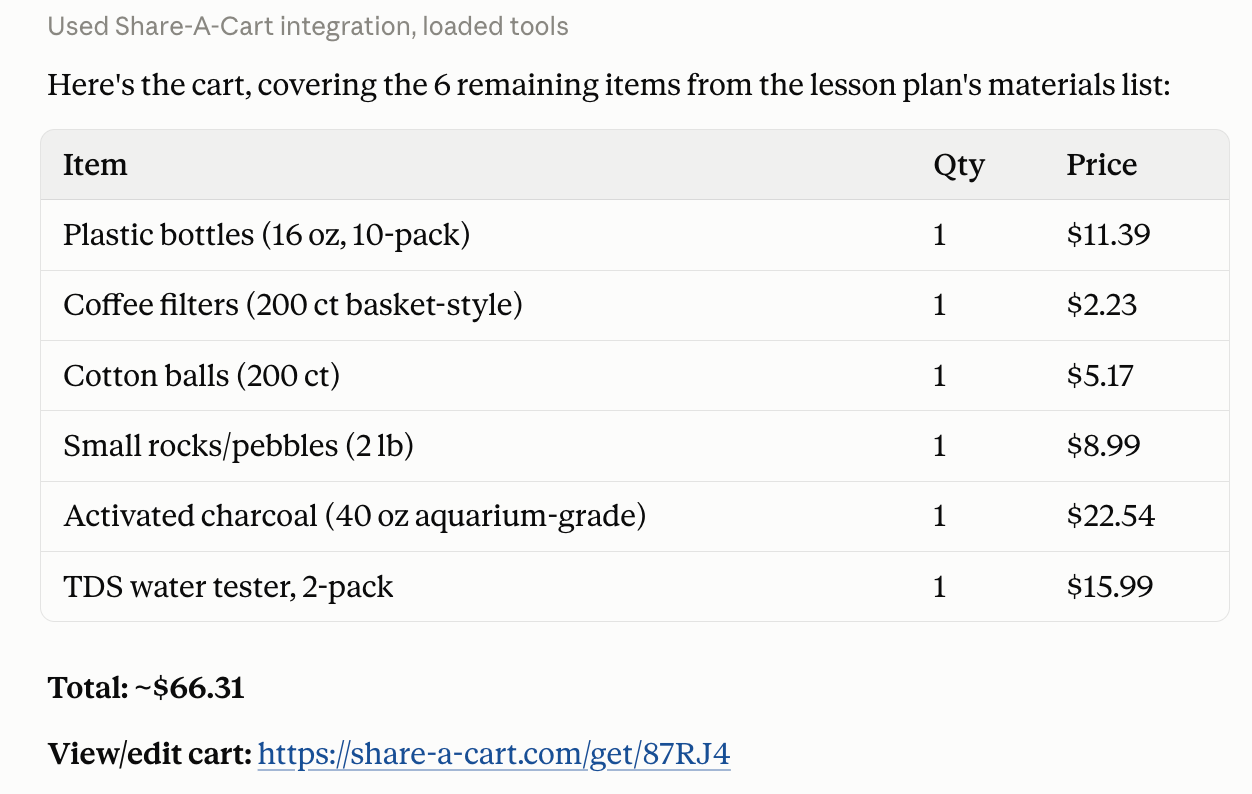
Claude also made a few callouts, and offered to add in items that might otherwise be missed:
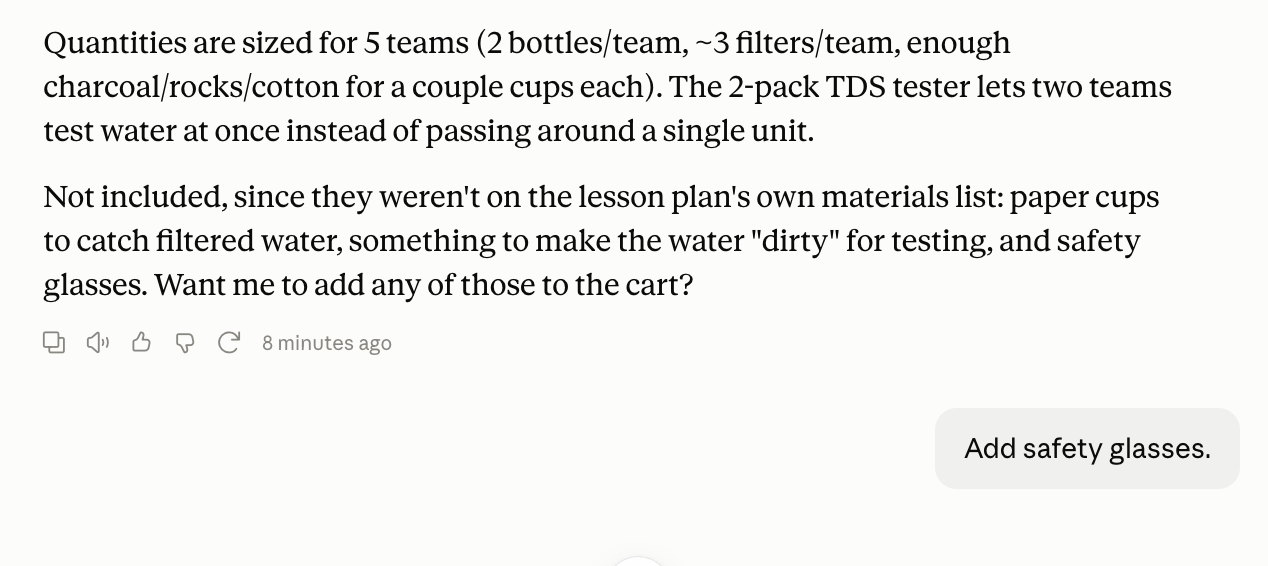
The final cart link was presented:
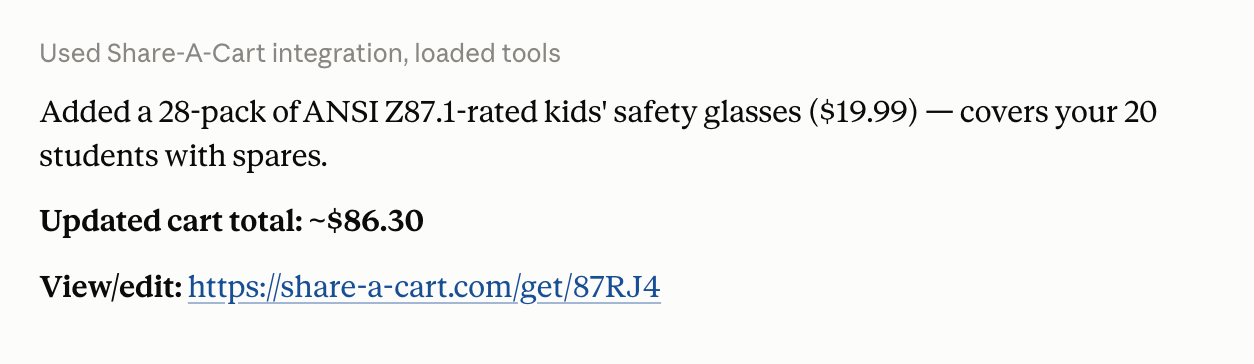
Step 4: Hand the cart off
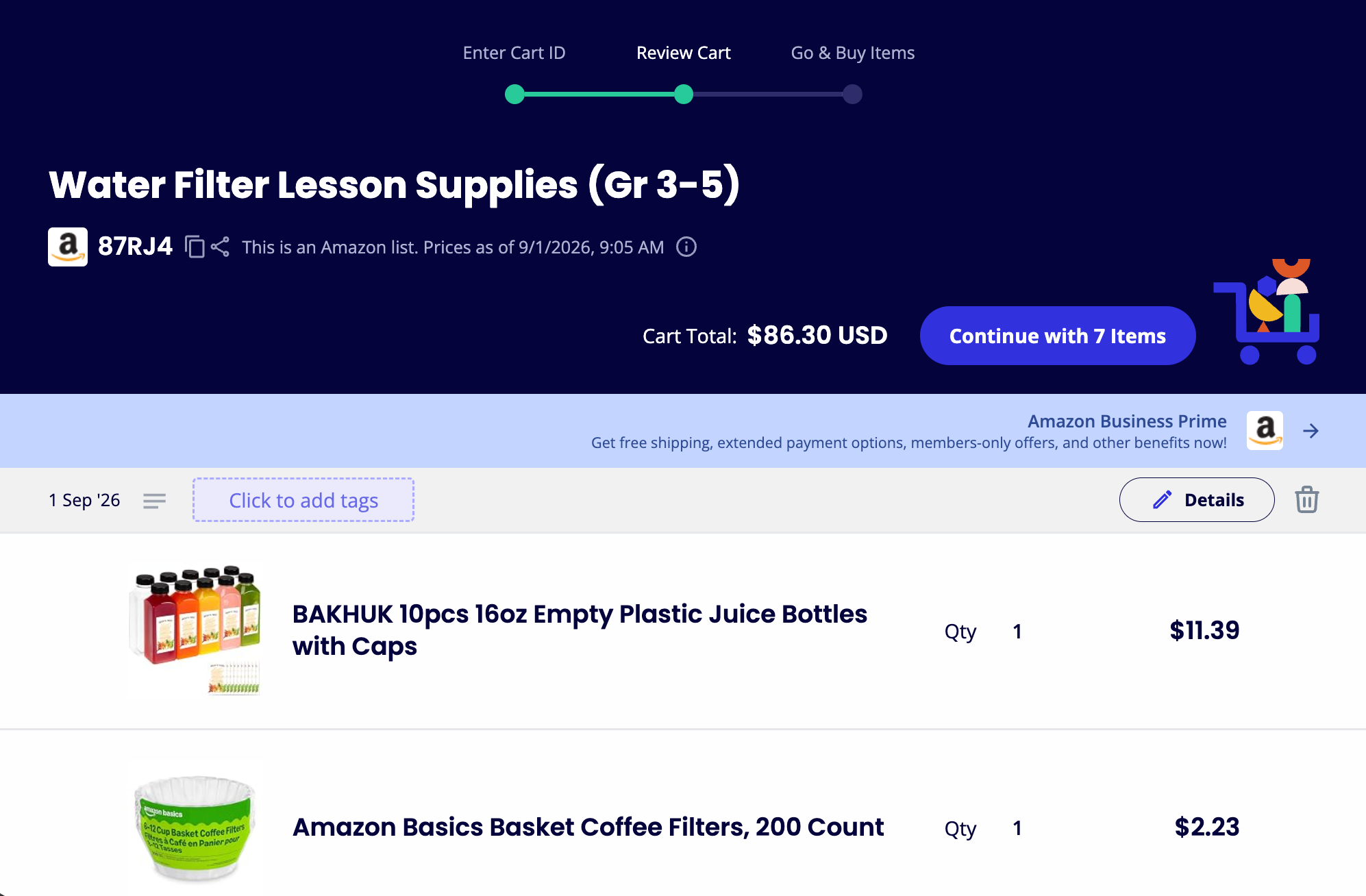
This is the part that matters most for teachers: you don’t have to be the one who checks out. Once the cart link is built, it’s yours to forward — to a purchasing office, an office manager, a department budget holder, whoever handles the actual buying at your school. They open the link, see exactly what’s needed and why, and can place the order themselves without you having to explain a supply list line by line:
Why this matters for classrooms specifically
A few things stand out about this workflow for teachers in particular:
- Quantities scale with class size, not just line items. The connector doesn’t just find one of each thing — it multiplies out based on the number of groups.
- It builds the cart at the store you actually use. You tell Claude which retailer your school buys from, and that’s where the cart gets built — no translating a list from one store’s format to another’s.
- Substitutions get explained, not just made. When a lesson plan calls for something not readily available in classroom quantities, Claude says so and shows the reasoning, so you can override it if you’d rather not.
- Nothing gets silently guessed. From flagging missing linked resources in Step 1 to asking about group count in Step 2, the connector surfaces uncertainty instead of hiding it behind a finished-looking cart.
- The output is shareable. A saved Share-A-Cart link can go straight into an email to your purchasing office — no re-typing a list of items, no back-and-forth about what each thing is for.
Try it yourself
If you’re planning a hands-on lesson, the pattern is simple:
- Connect the Share-A-Cart plugin to your AI client.
- Upload or paste your lesson plan.
- Ask Claude what materials you’d need to teach it.
- Ask Claude to build a cart at the store your school buys from — and answer any clarifying questions about class size or group count.
- Review the cart, adjust quantities or swap items if you want, then send the link to whoever handles purchasing at your school.
What used to be an hour of cross-referencing a supply list against a retailer’s search bar — followed by another round of explaining it all to someone else — becomes a couple of messages in a chat and one link to forward.
