Accessing the Site
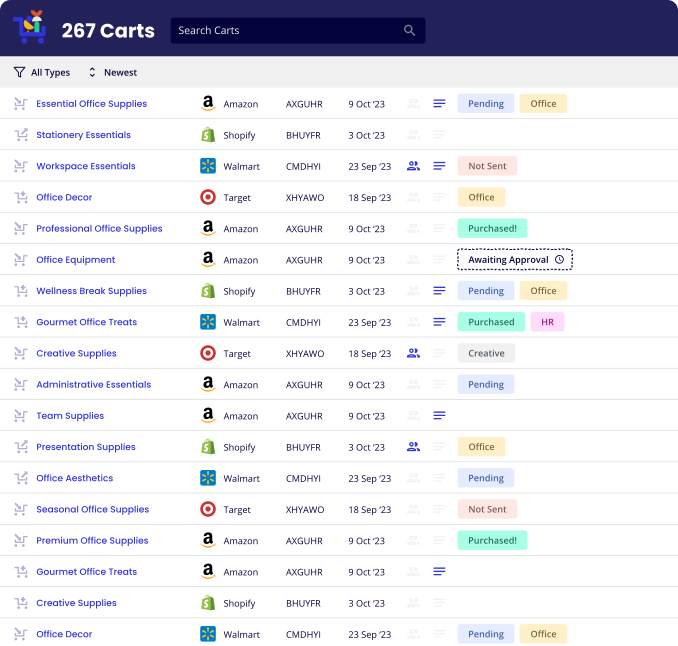
Once you have an account, go to your cart history dashboard. This is the main hub where you can see all carts that have been created and submitted for approval at your organization.
Adding Users
Users with the Admin role can add and remove users and assign them roles. There are 3 user roles available:
| Role | Permissions | Cart Visibility |
|---|---|---|
| Admin | Add users · Add vendors to whitelist | Sees all organization carts |
| Approver | Approve or reject carts | Sees all organization carts |
| User | Submit a cart for approval | Sees only the carts they created |
Note: All users can create carts and add cart notes and tags.
Automatic membership: Anyone who creates a Share-A-Cart account using your organization's email domain will automatically be added to your organization as a User — no invitation required.
To manually invite users, go to the organization settings page:
- 1 Click the Add Users button.
-
2
Enter the email address of the user you want to add, select a role, and press Enter.
- 3 When you're ready to send the invitations, click the Invite Users button.
Tip: You can add multiple users at once by repeating Step 2 before clicking Invite.
Whitelisting Vendors
Restrict which vendors your organization can use for cart sharing.
Coming SoonOrganization Settings
Admins can configure organization-wide approval behavior from the Settings tab in Organization Settings. To access it, go to Organization Settings → Settings.
Require Users to Select Approver
Editable by AdminsWhen enabled, users submitting a cart for approval must select a specific approver from the list of approvers and admins in your organization. When disabled, the approval request is sent to all approvers and admins.
Multi-Layer Approvals
Editable by AdminsWhen enabled, an approver who reviews a cart has the option to forward it to another approver for an additional round of approval before it is finalized. This supports organizations with multi-step purchasing hierarchies.
Cart Approval Workflow
Share-A-Cart+ for Organizations gives you the ability to approve or reject carts submitted by your team. Here's how the workflow operates from both sides.
Submitting a Cart for Approval
A user creates a cart, then visits the cart history page and:
- 1 Click on the cart name.
- 2 Click Continue with X Items.
- 3 Choose whether or not this cart needs to be approved.
Approving or Rejecting a Cart
When a cart needs approval, all users with Admin or Approver roles will receive an email notifying them — unless the Select Approver setting is enabled, in which case only the approver selected by the submitter will be notified. To review:
- 1 Click the link provided in the email.
- 2 Review the cart, then click either Approve or Reject.
- 3 If you reject the cart, a text field will appear where you can explain why.
Exporting Carts
You can export a list of all carts that have been submitted, approved, or rejected at your organization. Simply click the Export button on the cart history page to download a spreadsheet.
Contact Us
Still have questions?
We're happy to help with setup, billing, or anything else.
